
How to Automatically Update Help Center Articles in Zendesk (2026)
Four ways to keep Zendesk help center articles up to date from solved tickets: Zendesk's own tools, Knowledge Copilot, Claude or ChatGPT, and AutoKnowledgeBase. What each one automates, and which fits your team.
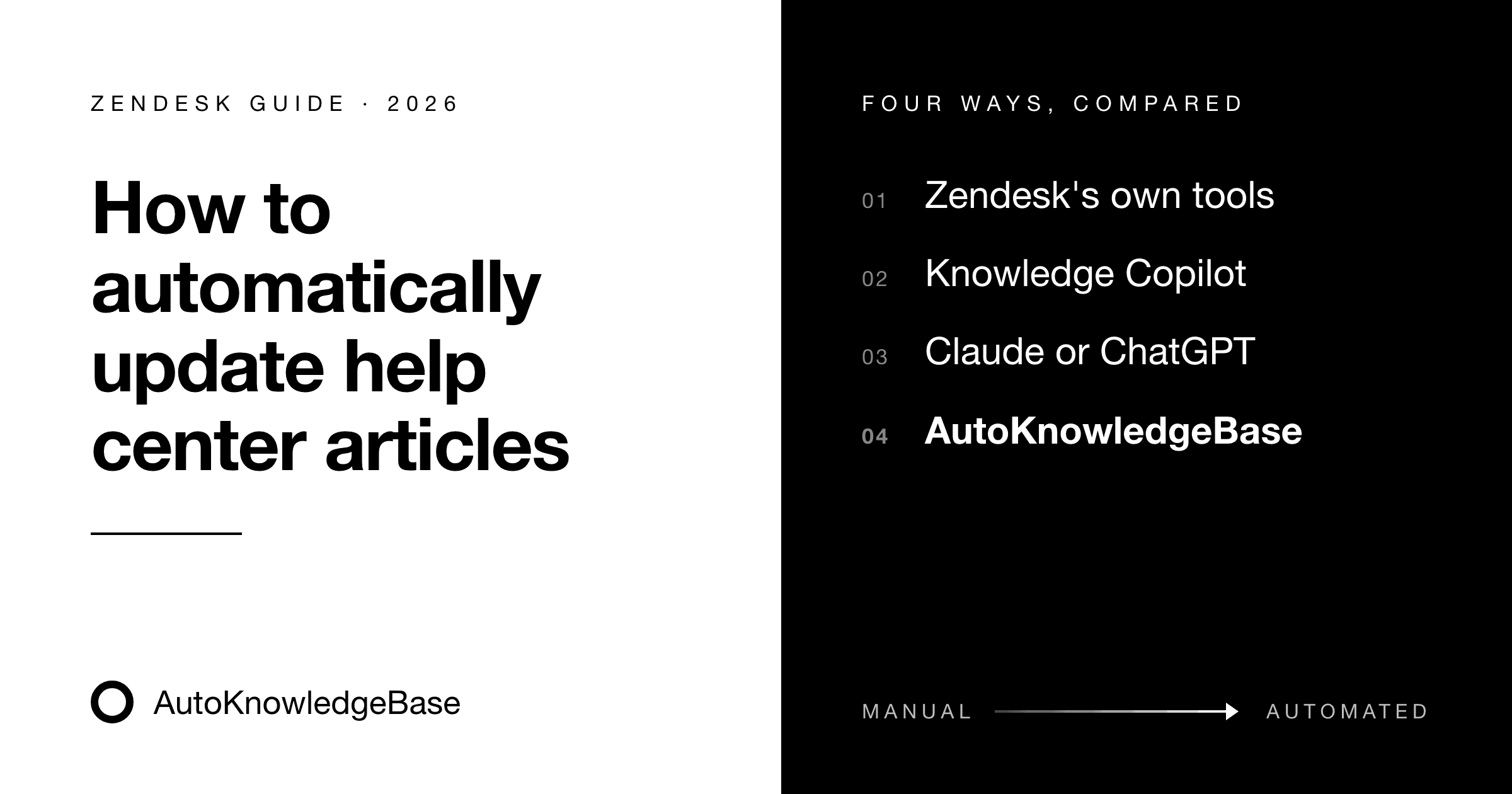
Short answer: Zendesk doesn't update help center articles on its own. You have four options, from fully manual to mostly automated: Zendesk's built-in knowledge tools, Zendesk Knowledge Copilot, a general AI assistant like Claude or ChatGPT, or a dedicated tool like AutoKnowledgeBase that drafts updates from every solved ticket. In every case, a person should still approve what gets published.
The problem all four try to solve is the same. Your agents answer questions every day, and those answers live in ticket replies, not in your help center. Articles go out of date as your product changes, customers can't find answers, and the same questions come back as new tickets. If you use AI bots or agent-assist tools, they repeat whatever stale content your help center contains.
Here is what each option actually automates, where it stops, and who it suits.
Facts about Zendesk and third-party tools were checked in October 2026. Zendesk changes its AI features often, so confirm the details in your own account.
Option 1: Zendesk's built-in knowledge tools
Zendesk Guide includes several features that help you keep articles current. None of them write the update for you, but together they make the manual process more organized.
- Knowledge Capture app. Agents can search and link articles while working a ticket, flag an article that needs an update, and, on higher plans, create a new article from a template without leaving the ticket. The agent still writes the content.
- Article verification. Admins can set rules that mark articles as unverified on a schedule, for example every six months. Zendesk then emails each article's owner to review and re-verify it. This catches articles nobody has touched, but it's based on age, not on what your tickets say.
- AI writing tools in the editor. Zendesk's generative AI tools can expand, shorten or change the tone of text you've written. They help with the writing, not with spotting which articles need it.
- Explore reports. You can report on searches with no results and on article usage to find gaps.
Good for: teams with a dedicated knowledge manager, or low ticket volume where someone can realistically review flags every week.
Where it stops: someone has to notice the problem, find the right ticket and write the article. On a busy team, that's the task that always slips.
Option 2: Zendesk Knowledge Copilot
Knowledge Copilot is Zendesk's own AI tool for knowledge base health. According to Zendesk's announcement, it adds a Knowledge home page that shows coverage, freshness and AI readability, and recommends articles to create or update based on ticket trends. Its article builder can generate article drafts from ticket data or a prompt.
As of October 2026 it is in an early access program. Customers on Suite Professional and above can turn it on in Admin Center. Zendesk hasn't published final pricing.
Good for: teams already on Suite Professional or above who want a built-in view of where their help center is weak, with no extra tool to install.
Where it stops: recommendations are based on trends across many tickets, so you work from a list of suggestions rather than getting a draft for each ticket that shows a gap. It's also still early access, so features and pricing may change. We compared it with our own tool in detail in AutoKnowledgeBase vs Zendesk Knowledge Copilot.
Option 3: A general AI assistant like Claude or ChatGPT
Many teams already pay for Claude or ChatGPT, and both write help center articles well. There are two ways to use them.
The simple way: copy and paste
- Open a solved ticket and the article it relates to.
- Remove customer details from the ticket: names, emails, phone numbers, order or account numbers.
- Paste both into the assistant and ask it to update the article with what the ticket revealed, keeping your existing structure and tone.
- Review the result and paste it into Zendesk Guide as a draft.
To save effort, put your style guide and a few example articles into a Claude Project (or a custom GPT in ChatGPT), so every draft follows your format without re-explaining it.
The advanced way: connect the assistant to Zendesk
Claude can connect to outside tools through connectors based on the Model Context Protocol (MCP). As of October 2026, we couldn't find an official Zendesk connector from Anthropic, but third-party MCP servers such as Swifteq, Composio and Truto let Claude read tickets and search help center articles, and some can write changes too.
With a connection in place, Claude Cowork, the agent mode in the Claude desktop app, can handle multi-step work and run it on a schedule. You could ask it to "review last week's solved tickets, compare them to our help center, and draft updates for anything outdated." ChatGPT's agent mode works in a similar way.
Good for: small teams with low ticket volume, one-off cleanups, and anyone comfortable writing prompts and checking AI output.
Where it stops:
- You pick the tickets. The assistant only sees what you give it or what your prompt asks it to look for. Nothing runs when a ticket is solved unless you build that yourself.
- It doesn't reliably know your whole help center, so it can miss that an article already exists, and duplicates creep in.
- Personal data is your job. Tickets are full of customer details. Remove them before pasting, and check that your company's AI policy and your plan's data settings allow ticket content.
- Be careful with write access. If a connector lets the assistant edit Zendesk directly, it may be able to change live articles. Give it read-only access, or make sure it only creates drafts.
- Results depend on your prompt, and they can change from run to run.
Option 4: A dedicated tool like AutoKnowledgeBase
We make AutoKnowledgeBase, so weigh this section with that in mind.
AutoKnowledgeBase does the process from option 3 automatically, for every solved ticket. You connect it once with your Zendesk sign-in, and it creates the webhook and trigger it needs. From then on, each time a ticket is solved:
- Personal data is removed first. Emails, phone numbers, card numbers, addresses and names are replaced with placeholders before any AI step.
- One-off tickets are filtered out. Account-specific or one-time issues aren't worth an article, so they're skipped.
- The ticket is matched against your help center. AutoKnowledgeBase compares it with your synced articles and decides: create a new article, update an existing one, or already covered. You see the decision, its confidence and the reason behind it.
- A draft lands in Zendesk Guide. New articles go into the best-fitting section and follow the structure of that section's existing articles. Updates to a published article go into a separate draft, so your live article isn't changed.
- You review and publish. Nothing goes live until your team approves it.
![Zendesk Guide article list: AutoKnowledgeBase drafts, including "[Proposed update]" drafts, sit next to the published originals, which stay unchanged](/_next/image?url=%2Fblog%2Fzendesk-guide-proposed-update-drafts.png&w=3840&q=75)
In Zendesk Guide, new articles and "[Proposed update]" drafts wait for review. The published originals (green dots) stay live and unchanged until you apply the update.
Each analyzed ticket also gets a tag such as akb_article_created or akb_already_covered, so you can report on outcomes in Zendesk Explore. You can optionally add a private internal note on the ticket that tells agents what happened and links to the draft.
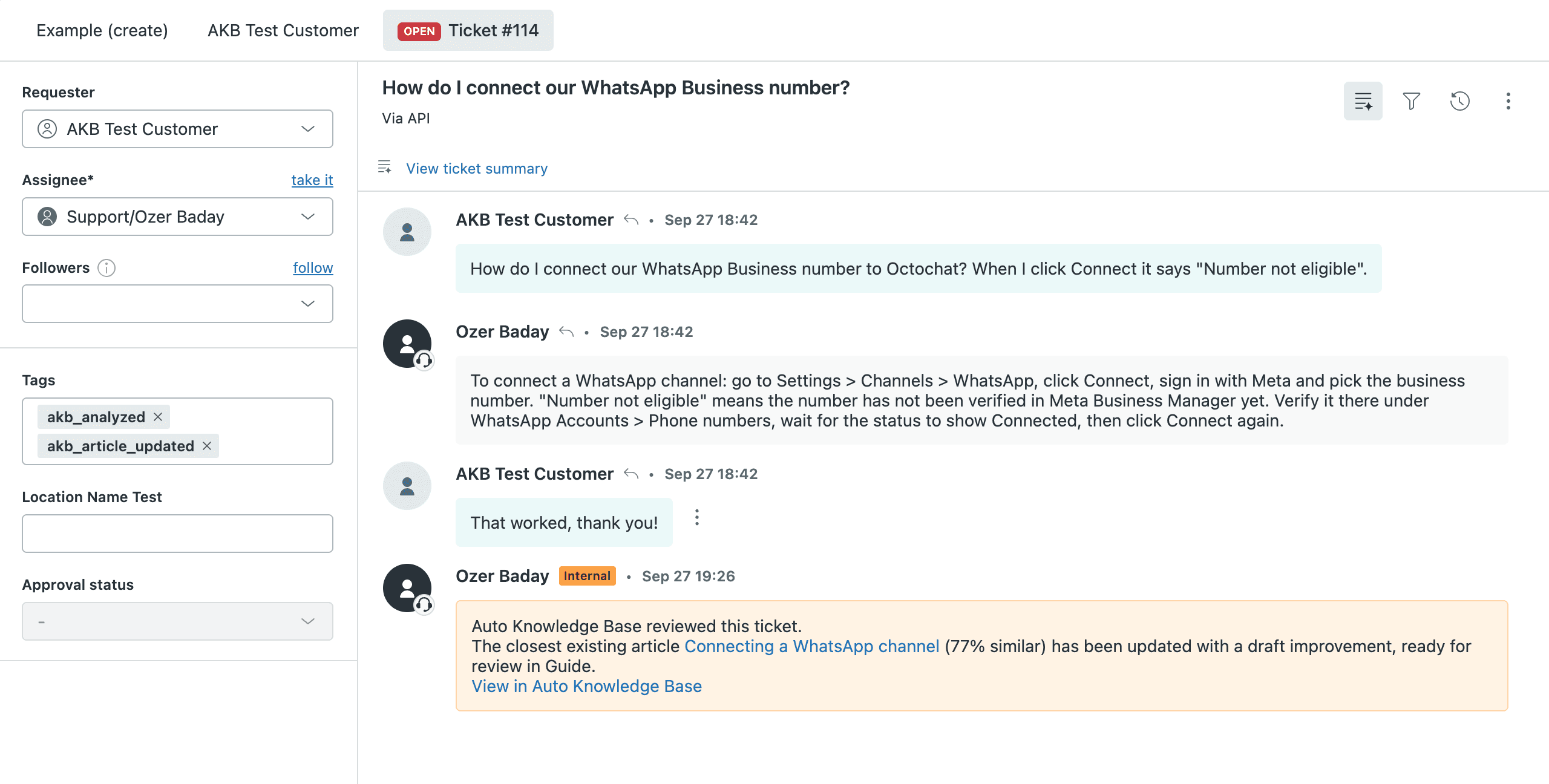
A solved ticket in Zendesk. The tags record the outcome, and the internal note tells agents which article was updated and links to it.
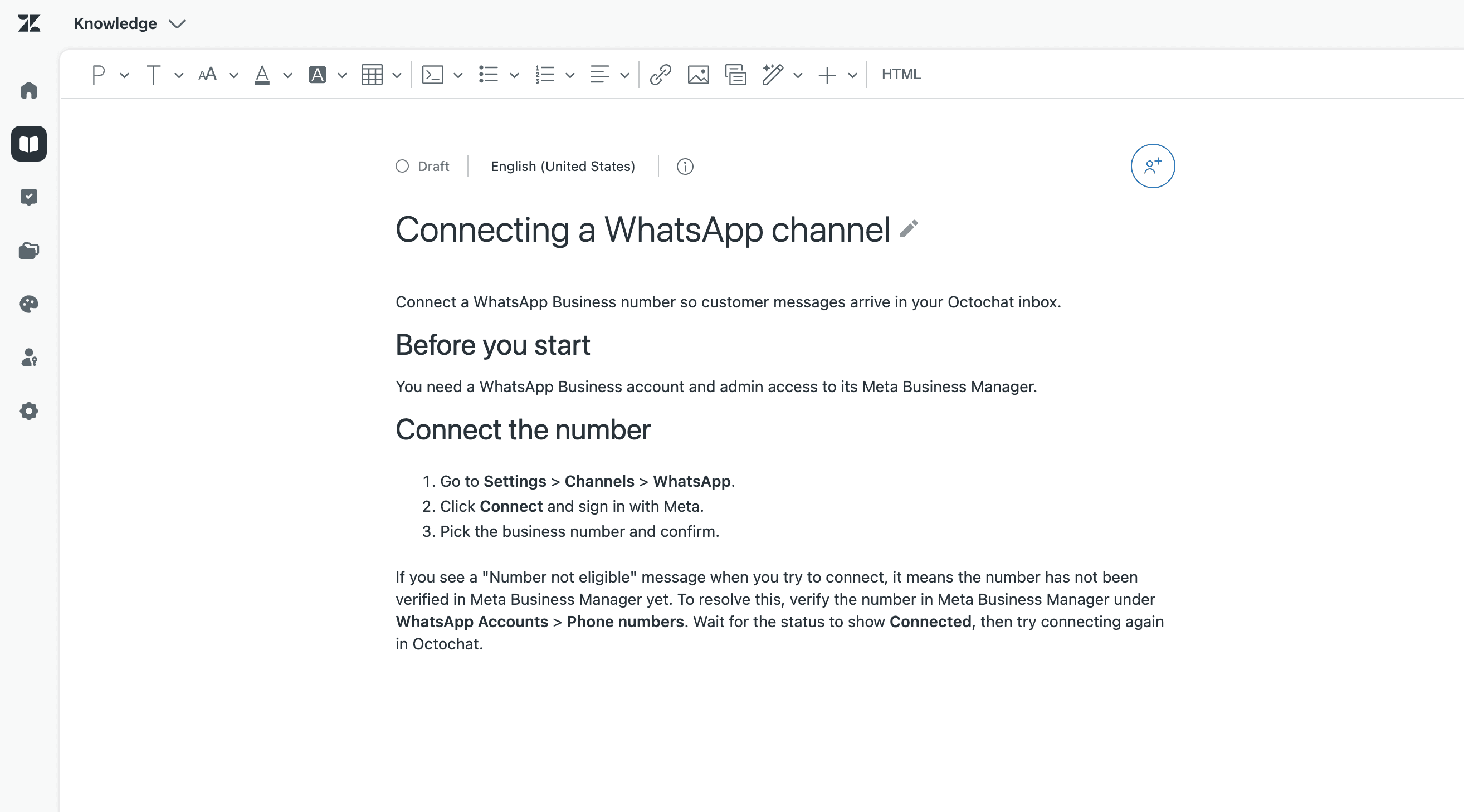
The draft it produced. The fix the agent gave in that ticket ("Number not eligible") is now part of the article, waiting for review.
In the AutoKnowledgeBase dashboard, you can open any analyzed ticket to see the decision, how confident it was, why it decided that, which existing articles matched, and the exact change it drafted.
12 new · 19 updates
filtered before processing
no KB action needed
Ticket analysis #4821
Downloading your invoices
Downloading your invoices
Updating existing article "Downloading your invoices"
Go to Billing and open the Invoices tab.
Click Download next to the invoice you need.
− Invoices can only be downloaded one at a time.
+ To download several invoices, select them and click Export as ZIP.
+ Invoices from before 2024 are under Billing → Archive.
AI decision
The article covers single invoice downloads but says bulk export isn't possible. The agent's reply shows it is, and points to the archive for older invoices.
Knowledge base matches
Illustration with sample data, based on the AutoKnowledgeBase dashboard and ticket analysis view.
Good for: teams with steady ticket volume that want every solved ticket checked without anyone doing it by hand, and that want to approve changes rather than write them.
Where it stops: it works with Zendesk only, and with English (en-us) articles only. It's a separate tool with its own cost. Plans start at $79 per month after a 30-day free trial, and there's no credit card required to start. See pricing for details.
Side-by-side comparison
| Zendesk built-in tools | Knowledge Copilot | Claude or ChatGPT | AutoKnowledgeBase | |
|---|---|---|---|---|
| Finds what needs updating | Partly (age-based reminders, agent flags) | Yes, from ticket trends | Only what you give it | Yes, every solved ticket |
| Writes the draft | No (AI helps edit) | Yes | Yes | Yes |
| Checks for an existing article first | Manual | Suggests create or update | Not reliably | Yes, every ticket |
| Removes personal data | Not needed (stays in Zendesk) | Not needed (stays in Zendesk) | You do it | Automatic |
| Puts the draft in Zendesk Guide | Manual | Yes | Manual, or via a connector | Yes |
| Who approves | Your team | Your team | Your team | Your team |
| Extra cost | Included in your plan | Early access, pricing not announced | Your AI subscription | From $79/month |
| Plan requirements | Varies by Guide plan | Suite Professional and above | None | Zendesk with Guide |
Which option should you choose?
- You have a knowledge manager and low ticket volume: Zendesk's built-in tools are enough. Set up article verification rules and make flagging part of your agents' routine.
- You're on Suite Professional or above and want a built-in health view: turn on Knowledge Copilot first. It's built in, so try it before buying anything, including us.
- You need to fix a handful of articles, or volume is low: use Claude or ChatGPT. Remove personal data first, and keep the assistant's Zendesk access read-only.
- You solve hundreds of tickets a month and articles keep falling behind: a dedicated tool like AutoKnowledgeBase is built for this. It checks every ticket so nobody has to remember to.
Whichever you choose, keep a person in the loop. Fully automatic publishing sounds appealing, but one wrong article can create more tickets than it prevents.
If you want to try the automated route, start a free trial or follow the getting started guide. Connecting Zendesk takes a few minutes.
Frequently asked questions
Can Zendesk update help center articles automatically?
Not on its own. Zendesk can remind article owners to review content and, with Knowledge Copilot, suggest and draft articles based on ticket trends. A person still decides what changes and publishes it. To get a draft for every solved ticket that shows a gap, you need a dedicated tool such as AutoKnowledgeBase.
Can I use Claude or ChatGPT to update my Zendesk knowledge base?
Yes. Paste a solved ticket and the current article into the assistant and ask it to draft the update, then copy the result into Zendesk Guide. It works well for a few articles at a time. It doesn't check your whole help center for duplicates, and you need to remove customer personal data from tickets before pasting them.
Is there a self-updating knowledge base for Zendesk?
Not one that publishes changes with no review, and you probably don't want that. The closest option is a tool that drafts new articles and updates from every solved ticket and lets your team approve each change. AutoKnowledgeBase works this way: every change is a draft until someone publishes it.
Does Knowledge Copilot cost extra?
As of October 2026, Knowledge Copilot is in an early access program that customers on Zendesk Suite Professional and above can turn on in Admin Center. Zendesk hasn't announced final pricing, so check your plan before relying on it.
Related articles
AI for Documentation: How to Automate Your Help Center
How AI reads solved support tickets, spots gaps in your help center, and drafts or updates articles so your documentation stays accurate without manual upkeep.
GuideA Guide to the Automated Service Desk for Zendesk
What an automated service desk looks like in Zendesk, which parts are worth automating, and how solved tickets can keep your knowledge base current.
GuideChoosing the Right Documentation Automation Tools for Your Team
What documentation automation tools do, which features matter for a support team, and how to compare options for your Zendesk help center.